Create an assignment using activities from your Spark course. You can set due dates, assign the assignment to specific students, preview the assignment, and allow multiple attempts.
- Click Switch to teacher view in the top navigation bar.
- Click Assignments in Spark.
-
Click New Assignment.
-
Select a course from the course dropdown menu.
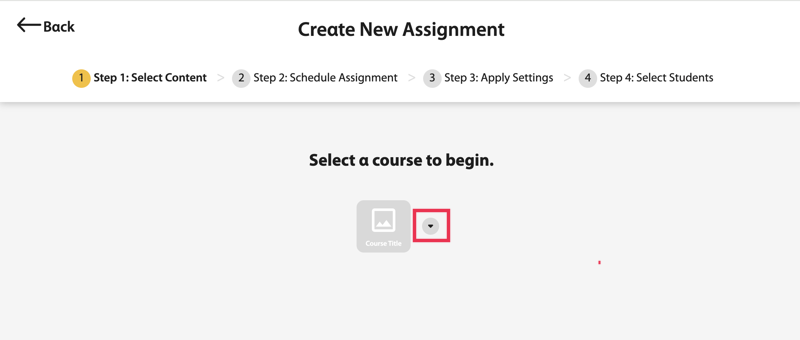
- Click Next.
-
Select content to add to your assignment.
-
Use any of the following filters to view the activities you want:
- Unit Number
- Grading: select auto-graded or manually-graded activities
- Skills
- Assigned Status: select activities that are already assigned or not assigned
- Click Apply.
-
Use any of the following filters to view the activities you want:
-
Select the activities you want for your assignment.
You can click the activity name on the left side of the page to preview it.
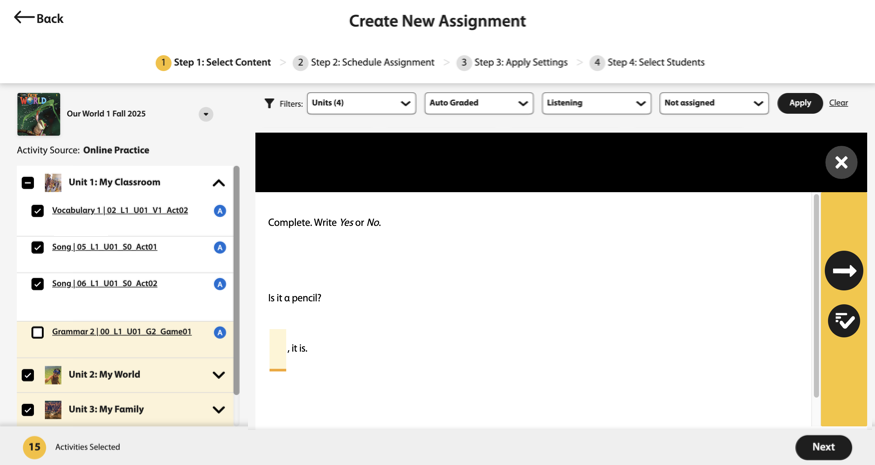
- Click Next in the bottom-right of the page.
-
Enter the assignment’s basic information.
- Name
- Assignment title
- Start Date and Time
- When students can first access the assignment
- End Date and Times
- When the assignment is due
- No dates
- Optional: Students can access the assignment at anytime throughout the course.
- Notes
- Optional: Additional instructions for your students
- Click Continue.
-
Apply the assignment settings.
- Activity attempts
- How many times students can attempt the activities within an assignment
- Show correctness marks
- When students can see if their answers were correct
- Show correct answers
- When students can see the correct answers
Note For games such as crossword puzzles, students are only allowed one attempt to complete. - Click Continue.
-
Select the students who should complete the assignment. Select
Assign to all students, including students that join the course
later, or select individual students.
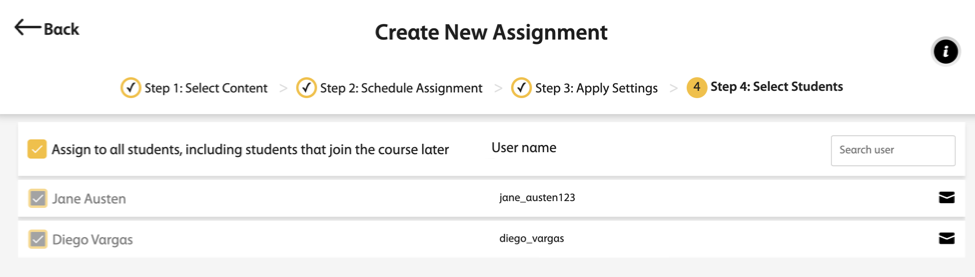
- Click Assign to save your new assignment.
- Click Confirm & Assign.
