Video Tutorial: Manually Grade Assignments
-
Scroll to the assignment you want and click
 .
The manually graded activity in that assignment opens, including the name of the student who submitted the activity.
.
The manually graded activity in that assignment opens, including the name of the student who submitted the activity. -
If there are multiple manually graded questions within the activity, click
 or
or  at the bottom of the screen to navigate to the other
questions.
at the bottom of the screen to navigate to the other
questions.
-
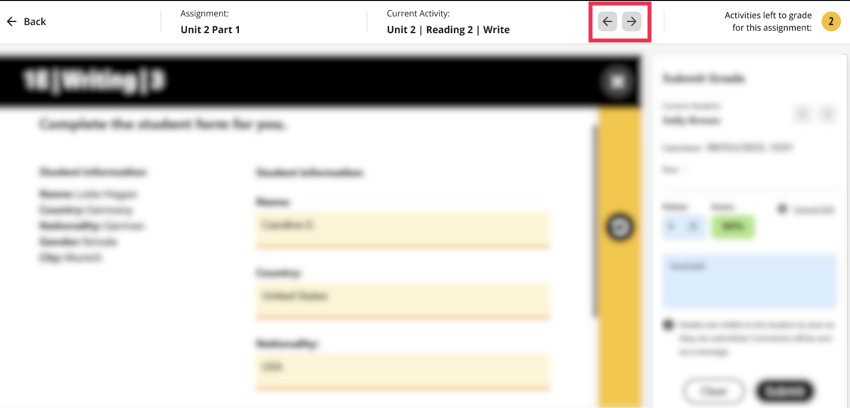
If there are multiple manually graded activities within the assignment, click
the arrows next to the activity name to navigate to the other activities.
-
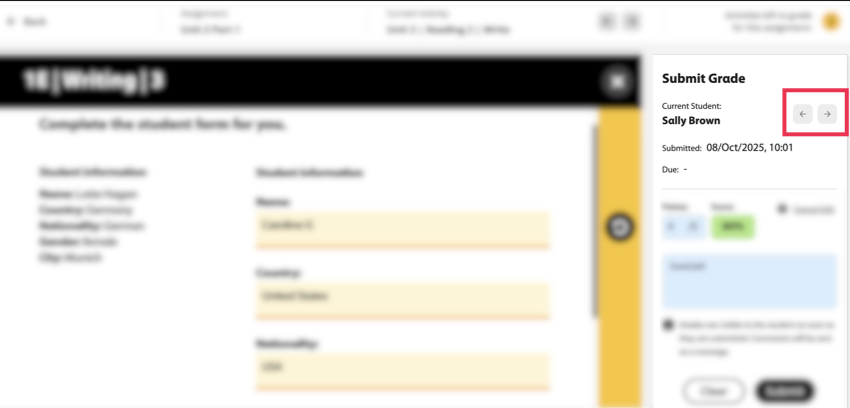
Click the arrows next to the student's name to view and grade the next
student's manually graded activities on that assignment.
-
When you have graded all the students' answers, click
 to exit.