Video Tutorial: Manually Grade Tests
-
Scroll to the test you want and click
 .
The manually graded question in that test opens, including the name of the student who submitted the answer.
.
The manually graded question in that test opens, including the name of the student who submitted the answer. -
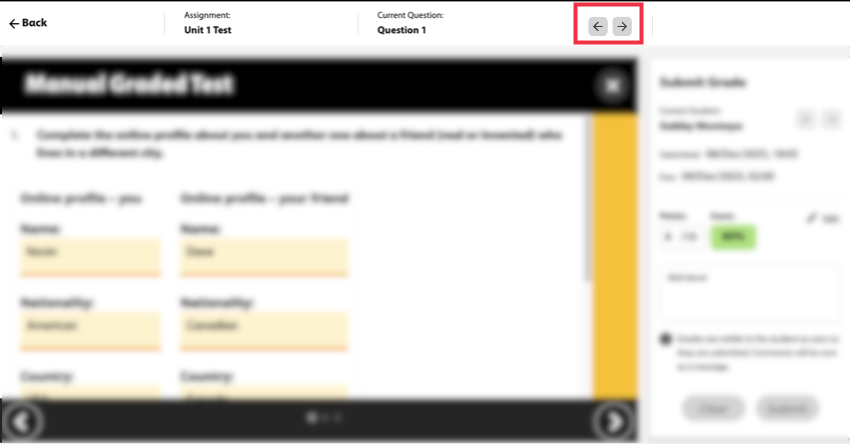
If there are multiple manually graded questions within the test, click the
arrows on the top-right of the page to navigate to the other questions.
-
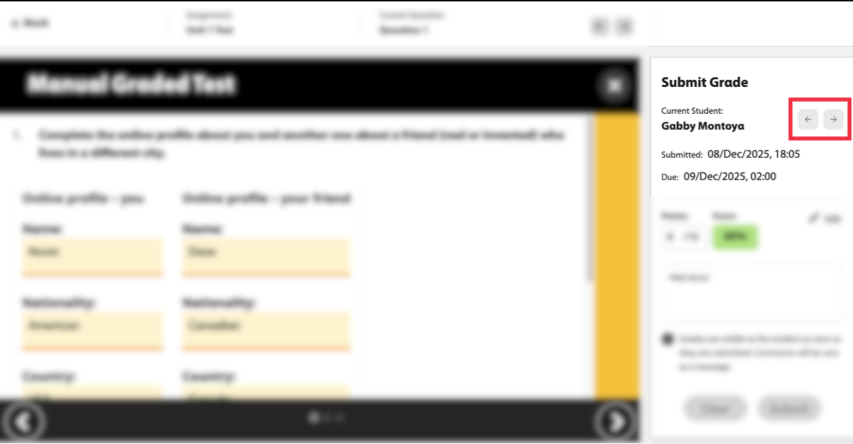
Click the arrows next to the student's name to view and grade the next
student's manually graded answers on that test.
-
When you have graded all the students' answers, click
 to exit.